The search performance section of the monitoring dashboard shows how quickly Meilisearch responds to queries and how much search traffic your project is handling. It is labeled Beta in the Cloud UI. You can filter all charts by index using the All indexes dropdown, set a date range, or enable real-time mode. Timestamps are displayed in UTC.

Search latency

The search latency chart tracks response times at four percentiles: p75, p90, p95, and p99, measured in milliseconds.
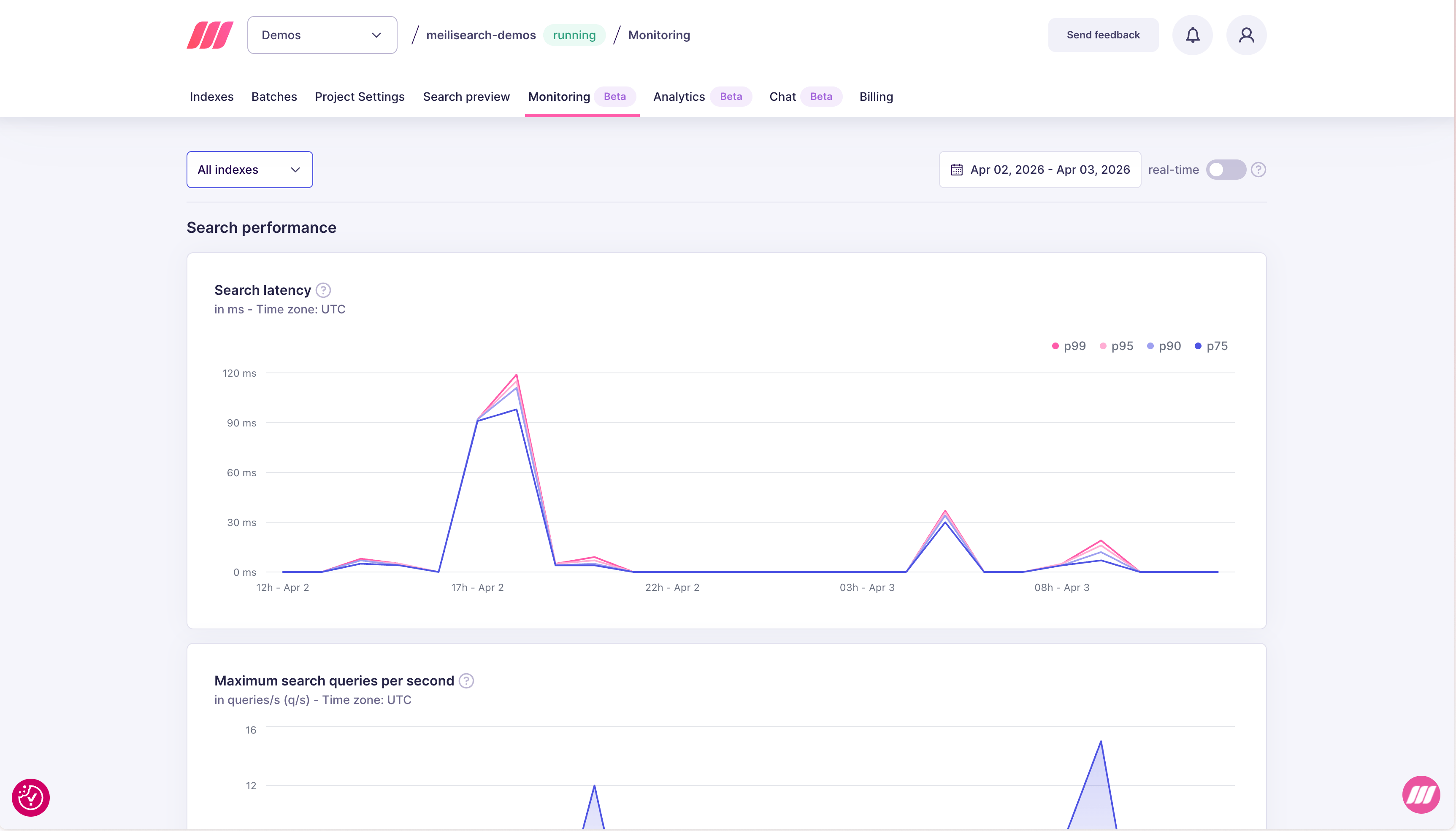
Search latency chart showing p75, p90, p95, and p99 response times in milliseconds over time
PercentileWhat it means
p7575% of searches completed within this time
p9090% of searches completed within this time
p9595% of searches completed within this time
p9999% of searches completed within this time — the slowest requests
p99 latency is the most important signal for user experience: even rare slow queries are visible to users. A healthy p99 is typically under 100 ms for most workloads.

Maximum search queries per second

This chart shows the peak number of search requests processed per second (q/s) during each time interval.
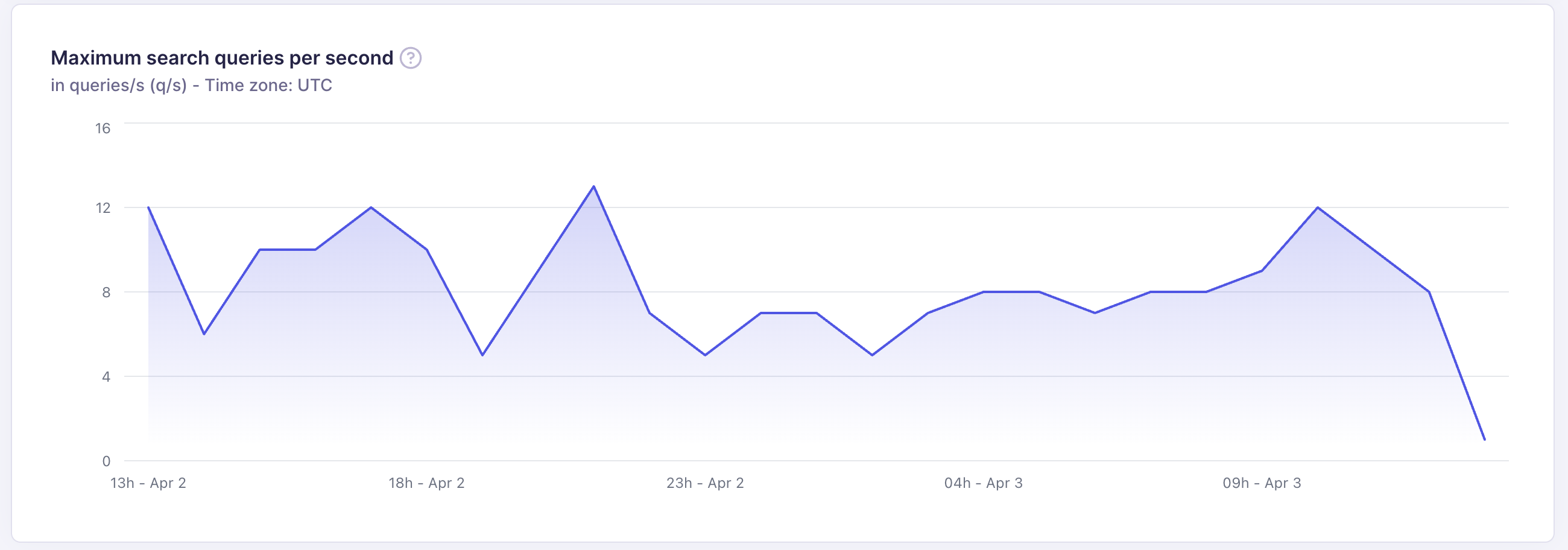
Maximum search queries per second chart
Use this chart to:
  • Understand peak traffic patterns across the day or week
  • Verify that your resource tier handles your traffic without latency degradation
  • Detect unexpected traffic drops that may indicate application errors

Performance trace

Performance trace gives you a per-step breakdown of how time was spent during a search request. Use it to understand exactly where latency comes from, especially when your p99 is high but the cause is not obvious from aggregate metrics. To enable it, open the Search preview tab for your project and toggle Performance trace in the top-right of the results panel.
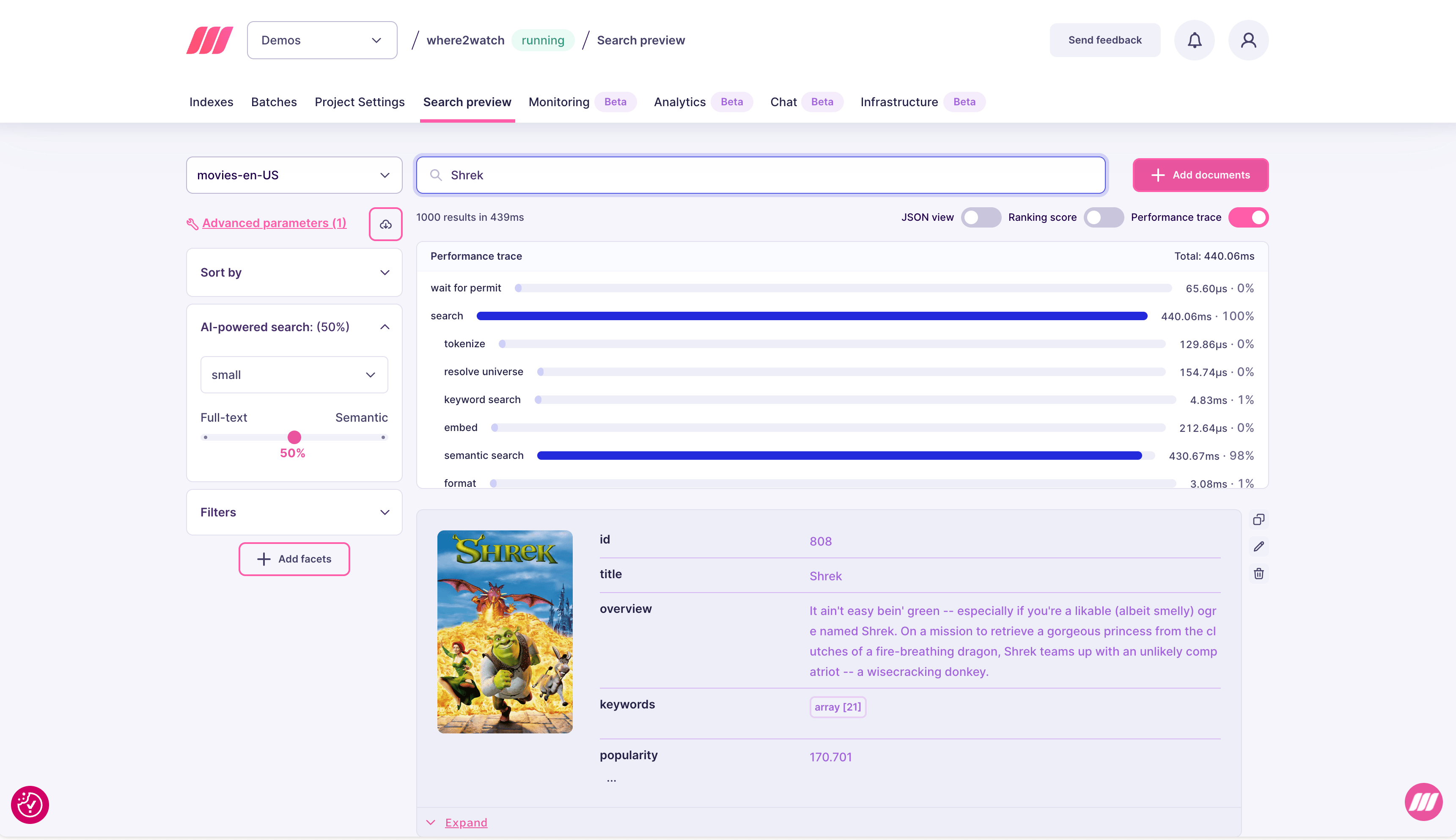
Search preview showing Performance trace panel with per-step timing breakdown including semantic search at 98% of total time
The trace shows each step of the search pipeline with its duration and share of total time:
StepWhat it covers
wait for permitTime waiting to acquire a read permit (queue wait)
searchTotal time inside the search engine
tokenizeQuery tokenization
resolve universeFilter evaluation to compute the candidate document set
keyword searchFull-text ranking and scoring
embedTime to generate the query vector (for hybrid/semantic search)
semantic searchVector similarity search against the index
formatFormatting and serializing the response
In the example above, semantic search accounts for 98% of total time (430 ms out of 440 ms). This is expected for hybrid search with a small model, and indicates the bottleneck is the vector search step rather than filtering or ranking.

Expert support for Enterprise customers

In most cases, the simplest way to improve search performance is to upgrade to a larger resource tier. More RAM means more of the index fits in memory, which directly reduces latency. You can change your resource tier at any time from the project settings. If upgrading does not resolve the issue, the Meilisearch team can help. Enterprise customers have direct access to experts who can review your index configuration, query patterns, and performance traces to optimize for your specific workload. Contact sales@meilisearch.com to learn more.

Common issues and fixes

SymptomLikely causeFix
High p99, normal p75Occasional complex queries or large result setsAdd pagination, reduce hitsPerPage, simplify filter expressions
All percentiles highIndex too large for available RAMUpgrade resource plan
Latency spike after re-indexingSettings change triggering re-ranking overheadMonitor for a few minutes after settings changes; latency typically stabilizes
QPS drop without explanationApplication errors or expired API keysCheck application logs and verify API key validity
High embed time in traceSlow embedding model or cold model startSwitch to a faster embedder model or use a larger resource tier
High semantic search timeLarge vector index or high vector dimensionsReduce vector dimensions, or upgrade RAM
High resolve universe timeComplex filter expressions or many filterable attributesSimplify filters; avoid filtering on high-cardinality attributes