

Set up from the Meilisearch Cloud dashboard
Open your project in the Meilisearch Cloud dashboard and select the Search rules tab.Activate the feature
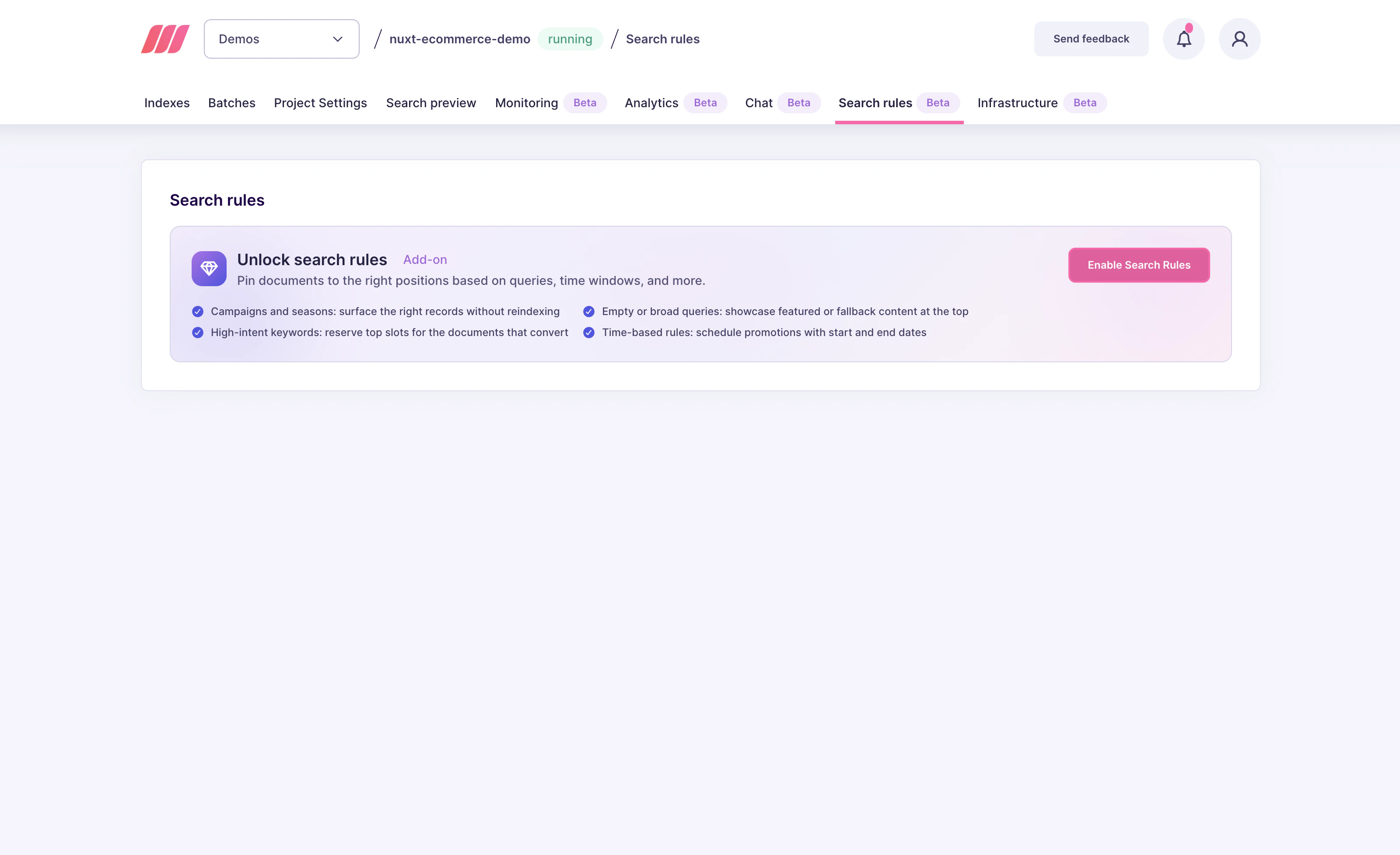
Search rules are an add-on. On the Search rules tab, click Enable Search Rules to turn on thedynamicSearchRules experimental flag for the project.
Create your first rule
Once the feature is active, the Search rules tab shows a short explainer and a New rule button. Click it to start building a rule.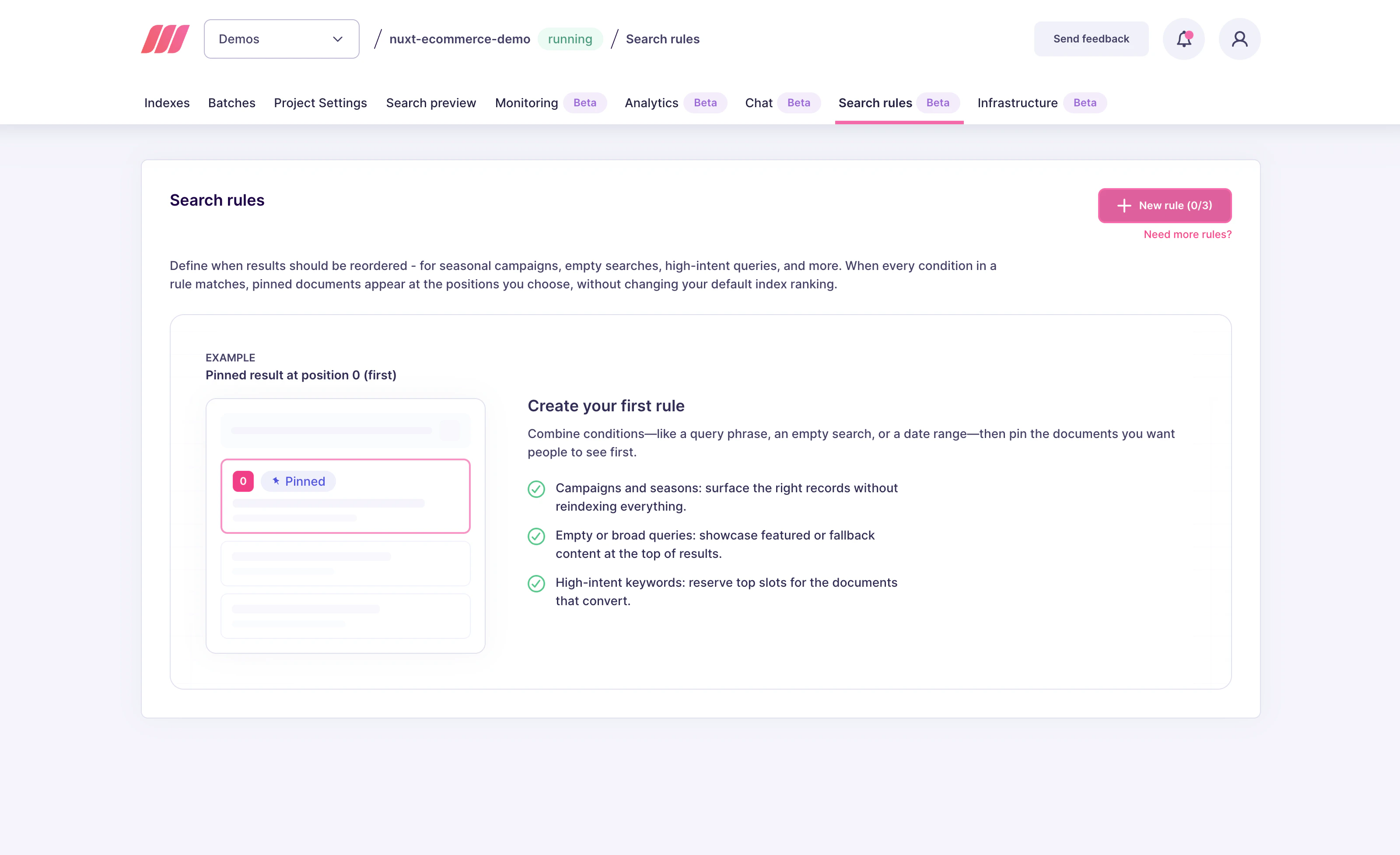
Fill in the rule’s general information
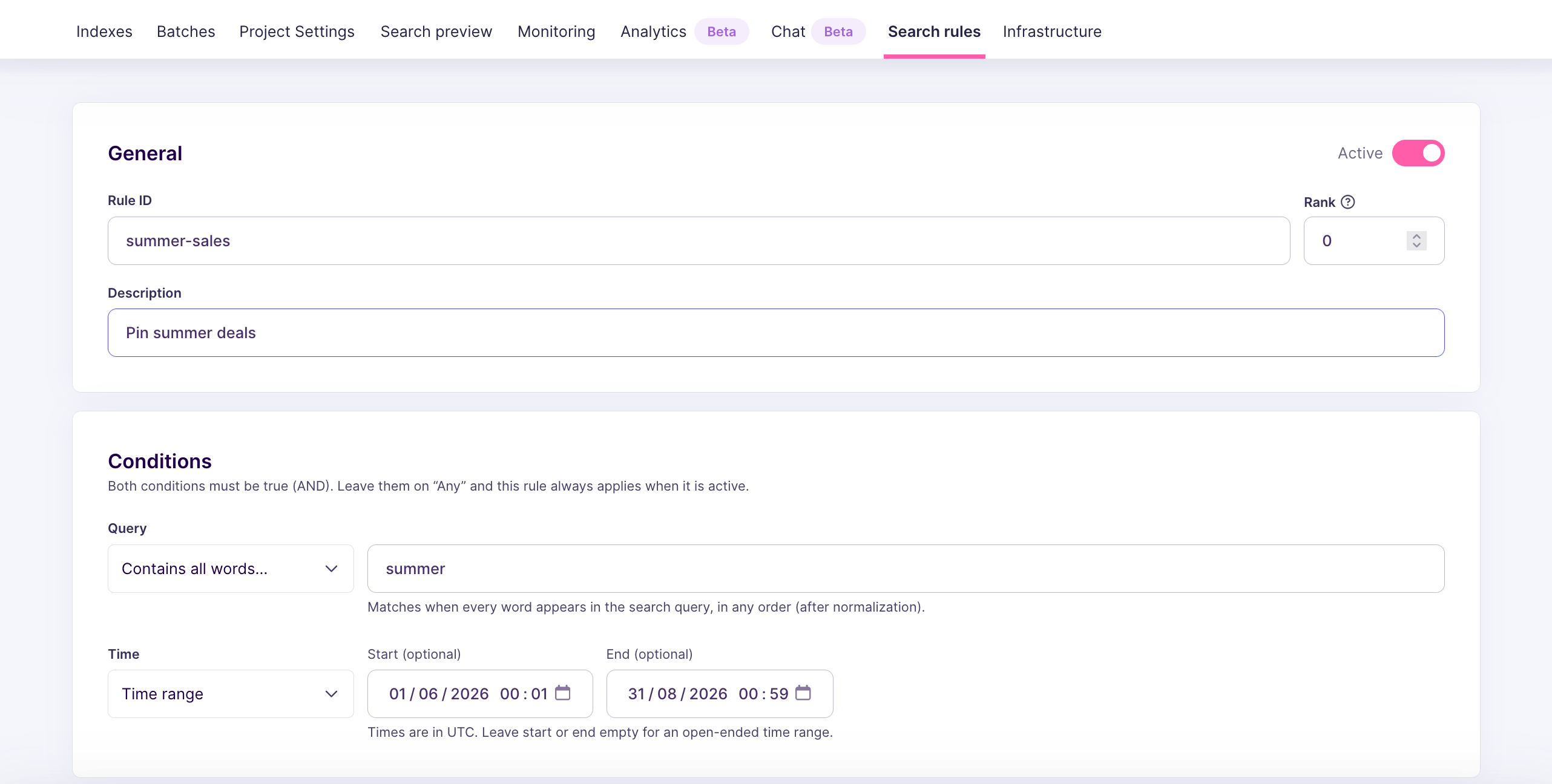
Give the rule a Rule ID (used as theuid), an optional Description, and a Rank if several rules might match the same query. Keep the Active toggle on to apply the rule at search time.
Add conditions
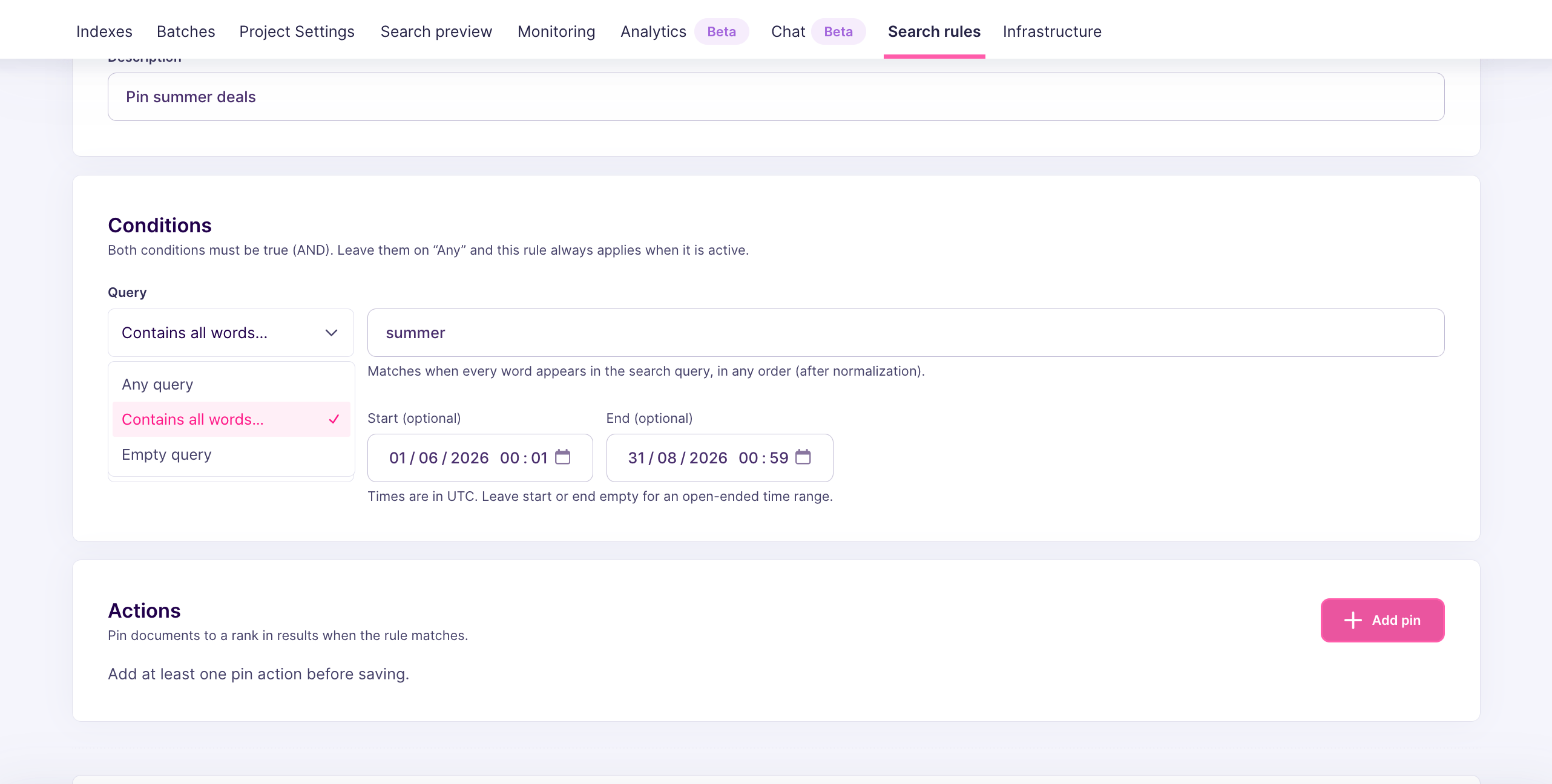
In the Conditions block, click either on the Query combobox or Time combo box to configure the conditions. Every condition you add is combined withAND, so the rule fires only when all conditions are true at the same time.
Pin documents to fixed positions
In the Actions block, click Add pin. Choose the source Index, pick the Document to promote, and set its target Position in the result list. Repeat for each document you want to pin. When the rule is ready, click Create rule.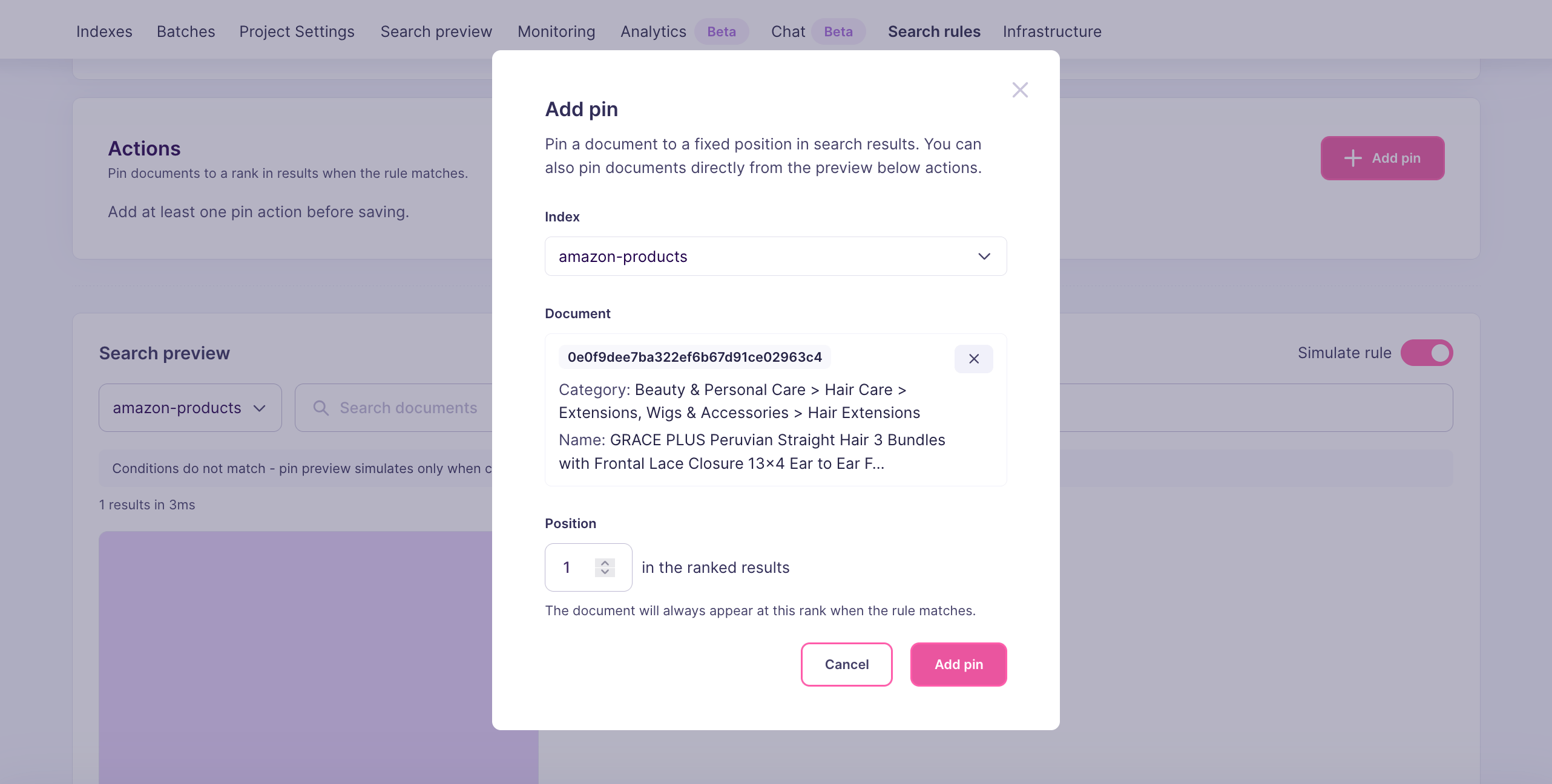
Review and manage your rules
Back on the Search rules tab, every rule you have created is listed with its conditions, actions, priority, and active state. Use the row toggle to pause a rule without deleting it, or the icons on the right to edit or remove it.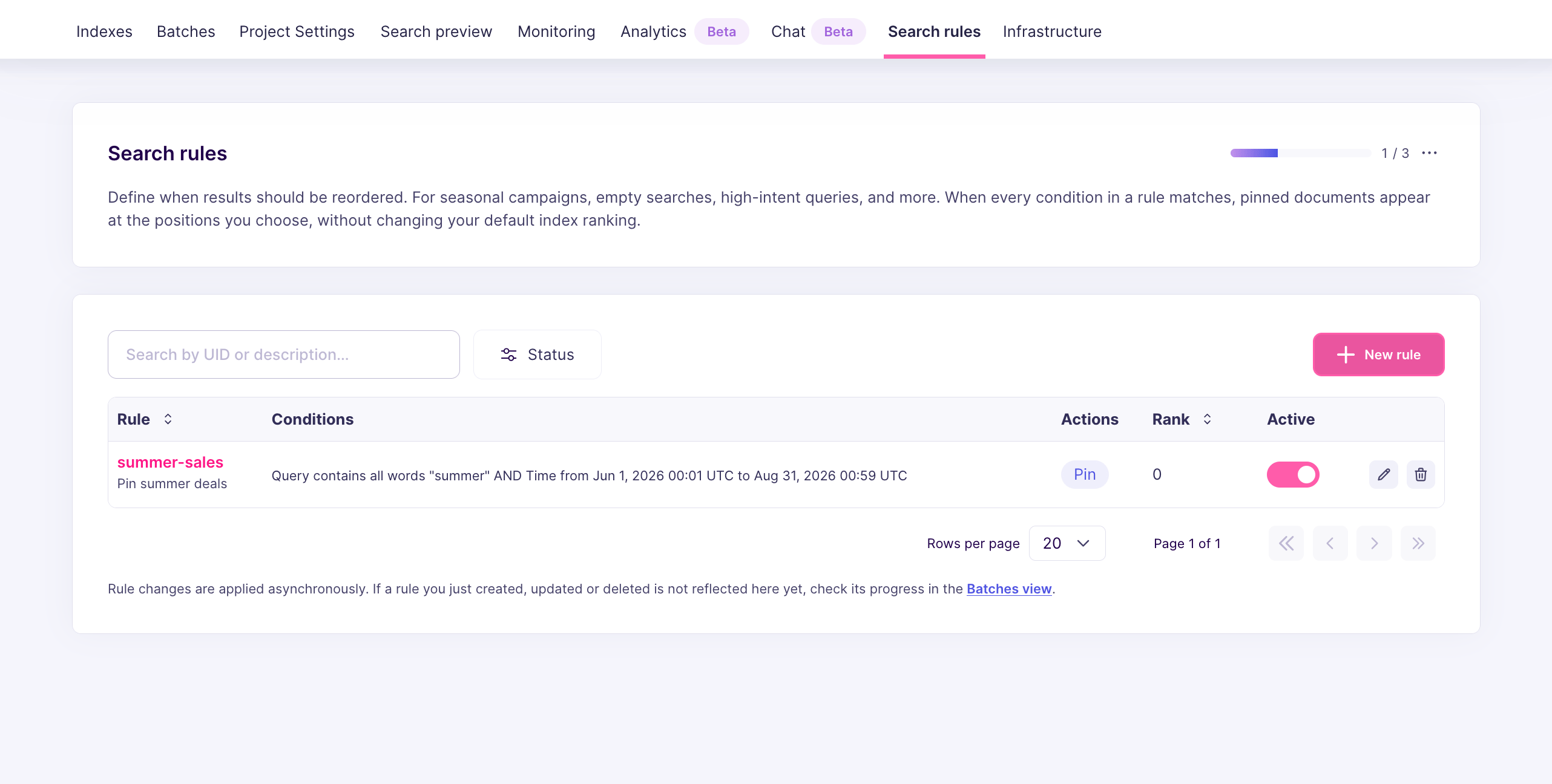
Set up from the API
Prefer the API? The same flow maps directly to the/"end": "2025-11-28T23:59:59Z" routes.
Enable the experimental flag
Send aPATCH /experimental-features to turn on the feature:
/dynamic-search-rules routes reject requests and saved rules do not apply at search time.
Create a rule
Create a rule withPATCH /dynamic-search-rules/invoice-help:
billing-workspace-overview in the support index to the first position whenever a query contains the word invoice.
The route registers a task corresponding to the creation or update of the rule.
Check the stored rule
Retrieve the rule you just created withGET /dynamic-search-rules/invoice-help. The response should include the uid, conditions, and actions you sent:
Run a matching search
Send a normal search request to the index, for examplePOST /indexes/support/search:
billing-workspace-overview exists in the support index and survives the current filters, Meilisearch inserts it at position 0. The rest of the response is the normal organic result set, with duplicates removed.
Search rules do not replace organic results. Meilisearch still computes them, then inserts the pinned documents on top.
Next steps
Pin one result for a query
Promote a landing page or help article for a query
Advanced
Learn how search rules interact with ranking and filters
API reference
Review endpoints and request fields
Experimental features
Learn more about experimental feature management